DTF Edge Cleaner
Free DTF Artwork Prep Tool
Artwork with half-transparent edge pixels will look smudgy and unprofessional once it’s pressed onto fabric. Our free DTF Edge Cleaner solves that in seconds. No software, no sign-up, no drama. Upload your PNG, clean your edges, and download a print-ready file. Sharp sharp.
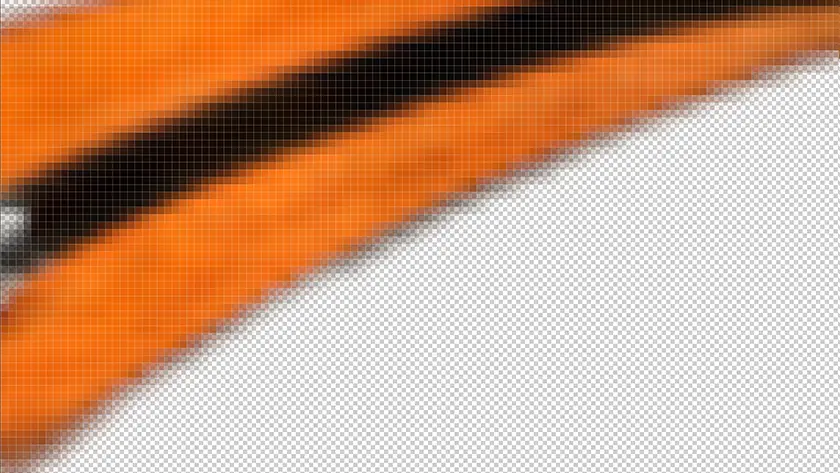
Half-Pixels Before DTF Edge Cleaner
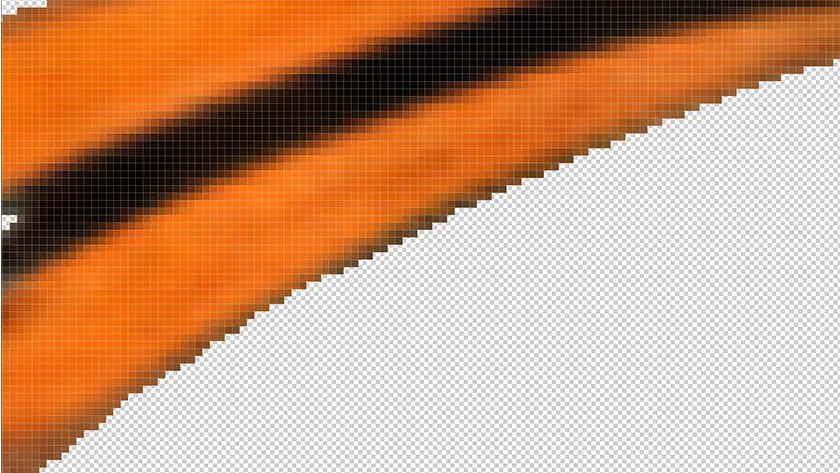
Solid Edges After DTF Edge Tool
Upload Your Artwork
Drop your PNG here
or click to browse · PNG files only
What Is a DTF Edge Cleaner?
A DTF Edge Cleaner is a tool that removes half-transparent pixels from the edges of a PNG file. When you export artwork from Photoshop, Illustrator, or any design tool, the software adds a subtle gradient of semi-transparent pixels around every edge to make it look smooth on screen. That’s great for digital viewing, but it’s a problem for DTF printing.
When those half-pixels go through a RIP software and get printed onto DTF film, they appear as a faint, blurry halo around your design. The DTF Edge Cleaner forces every pixel in your image to be either fully opaque or fully transparent. Nothing in between. The result is a clean, hard edge that presses onto fabric exactly as your design intended.
Why Do DTF Prints Need Clean Edges?
DTF printing works differently to screen printing or sublimation. The ink is laid onto a special film and then transferred to fabric using heat and pressure. Because there’s a physical transfer step involved, edge quality matters more than in other print methods.
Here’s what happens when you skip the edge cleaning step:
- Half-transparent pixels print as a faint colour fringe around your design
- On dark garments, the fringe shows up as a lighter halo
- On light garments, it can appear as a washed-out blur
- The adhesive powder sticks to semi-transparent areas, creating rough texture at the edges
- Fine details like text and thin lines lose definition
Cleaning your edges before you send your file to print eliminates all of these issues. It takes seconds and makes a visible difference to the finished product.
How to Use the DTF Edge Cleaner
The tool works entirely in your browser. Your file never leaves your device.
Here’s all you need to do:
- Upload your PNG: drag and drop your file onto the tool, or click to browse. PNG files only.
- Click “Clean My Edges”: the tool processes your image and forces every edge pixel to either 100% opaque or 100% transparent.
- Download your cleaned PNG: your file comes back at the original size, resolution, and DPI. Ready to upload to your DTF printer or send to us.
That’s it. No account needed, no watermarks, no file size limits.
What File Format Do I Need?
The DTF Edge Cleaner works with PNG files only. PNG is the correct format for DTF artwork because it supports a transparent background (alpha channel), which is what the edge cleaning process acts on.
If your artwork is currently in a different format, here’s how to convert it:
- Photoshop: File > Export As > PNG
- Illustrator: File > Export > Export As > PNG
- Canva: Download > PNG (tick “Transparent background”)
- GIMP: File > Export As > PNG
Make sure “transparent background” or “alpha channel” is enabled when you export. If your file has a white or coloured background instead of transparency, the edge cleaner won’t have anything to work with.
Does It Change My Image Quality or DPI?
No. The DTF Edge Cleaner only modifies the alpha (transparency) channel of your PNG. Your image colours, resolution, dimensions, and DPI metadata are all preserved exactly as they were in the original file.
Most DTF artwork should be exported at 300 DPI for best print results. If you upload a 300 DPI file, you’ll get a 300 DPI file back, cleaned and ready to print.
Frequently Asked Questions
Is the DTF Edge Cleaner really free?
Yes, completely free. No sign-up, no hidden costs, no watermarks on your file.
Is my file uploaded to your servers?
No. All processing happens directly in your browser. Your file never leaves your device and is never sent to our servers.
What's the maximum file size?
There’s no enforced file size limit. Very large files (above 50MB) may take a few seconds longer to process depending on your device, but the tool will handle them.
Will it work on my phone?
Yes. The tool is browser-based and works on any device: desktop, laptop, tablet, or phone.
My edges still look soft after cleaning. Why?
This can happen if the transparency in your original file was very heavily feathered. The cleaner uses a threshold of 50% opacity. Pixels above 50% transparent become fully transparent, and pixels below 50% transparent become fully opaque. If your feathering is extreme, you may need to re-export your artwork from your design software with anti-aliasing reduced or turned off before cleaning.
Do I still need to clean edges if I'm ordering through DTF Prints?
Not at all. Every file we receive gets a free artwork check before it goes to print. If your edges need cleaning, we sort it out at no extra cost. You’ll get a crisp, professional result regardless. That said, sending a clean file means your artwork goes through exactly as you intended, so it’s always worth doing if you can.
❤️ Love our DTF Edge Cleaner, want to chat, or share the love?
Send us a message, follow us on Facebook, or leave a Google review to spread the word